24 April 2026
How to Write Good Alt Text for Images (Easy Guide)
You probably already know that images need alt text — it shows up on every SEO and accessibility checklist ever written.
But knowing you need it and knowing how to write it well are two very different things, and most alt text published online is either too vague, stuffed with keywords, or simply missing.
In this guide, you’ll learn the exact rules, image-type frameworks, and before-and-after examples that turn mediocre alt text into something that genuinely serves both your users and your search rankings.
Ready? Let’s dive in!
What Is Alt Text and Where Does It Appear in HTML?
Alt text, or (alternative text), is a written description added to the alt attribute of an HTML img tag that allows screen readers to convey image content to users with visual impairments and helps search engines understand what an image depicts.
It sits inside the image tag itself and is invisible to sighted users unless the image fails to load — but it is always present in the page’s source code, where both assistive technologies and search engine crawlers read it.
In code, it looks like this:
src=”golden-retriever-puppy.jpg” alt=”Golden retriever puppy sitting on green grass in sunlight”
The alt attribute is a standard HTML element, not a plugin or add-on. Every image on the web can have one.
Furthermore, most CMS platforms — including WordPress, Shopify, and Squarespace — expose a dedicated alt text field so you never need to touch the code directly.
Screen readers, such as NVDA and JAWS, read the alt text aloud in place of the image. For a user who is blind or has low vision, alt text is the entire experience of that image.
If your alt text says “image123.jpg,” that user gets nothing. If it says “Golden retriever puppy sitting on green grass in sunlight,” they can visualize what you intended. That difference matters enormously.
Why Does Alt Text Matter for Accessibility and SEO?
Alt text matters because it serves three distinct, high-stakes functions simultaneously: making your website accessible to users with disabilities, providing search engines with the context they need to index your images, and providing a fallback when images fail to load.
Neglecting any one of these creates real consequences — for users, for rankings, and potentially for legal compliance.
Alt Text and Web Accessibility
Missing or inadequate alt text on meaningful images is one of the most common and impactful accessibility failures found on the web — a finding consistently highlighted in WebAIM’s annual Web Accessibility In Mind reports. In fact, missing alt text was flagged on 16.2% of the 66.6 million home pages analyzed in WebAIM’s 2026 report.
For users who rely on screen readers, images without alt text are invisible to them.
Consider a blog post that uses an infographic to explain a five-step process. A sighted reader gets the full message. A screen reader user, without alt text, gets nothing — even though they visited the same URL.
Alt Text and Image SEO
Google cannot “see” images the way humans do. Its crawlers read the alt attribute to understand what an image contains, and that understanding directly influences whether your images appear in Google Image Search.
Images with descriptive, relevant alt text are significantly more likely to rank than those with empty or generic alt text. This is a core component of image SEO best practices that many site owners overlook entirely.
Beyond image search, alt text sends contextual signals to Google about the surrounding content. An article about home office setups that uses images with descriptive alt text reinforces its topical relevance — helping the page rank for related queries.
Think of alt text as micro-metadata that multiplies the SEO value of every image you publish. Make sure image SEO is part of your on-page SEO checklist for every new post.
Alt Text as a Fallback
Third, alt text displays as visible text when an image fails to load — due to a slow connection, a broken file path, or an email client that blocks images.
In that moment, good alt text preserves the meaning. Bad alt text (or none at all) leaves a blank rectangle where useful content should be.
What Are the Rules for Writing Good Alt Text?
Good alt text follows five core rules: be specific and descriptive, keep it under 125 characters, describe function over appearance for functional images, avoid redundant phrases like “image of” or “photo of,” and include keywords naturally without forcing them.
These rules apply to the majority of images. The exceptions are addressed by image type in the next section.
1. Be Specific and Descriptive
Vague alt text is useless alt text. “Dog” tells a screen reader user almost nothing. “Golden retriever puppy sitting on green grass in sunlight” tells them the breed, the age, the environment, and the mood. Specificity is the single biggest upgrade you can make to most alt text in the wild.
For example, compare these two descriptions for a photo of a woman working on a desktop:
- Weak: alt=”woman working”
- Strong: alt=”Woman working on a desktop in a bright office”
The second version communicates the same information a sighted user would absorb at a glance — in about four seconds of reading.
2. How Long Should Alt Text Be?
Alt text should be kept under approximately 125 characters to ensure screen readers read it in full. Most screen readers truncate alt text beyond this length, meaning any description you write past that point may never be heard.
This is not a rigid rule — a slightly longer description for a complex infographic is sometimes warranted — but 125 characters is the practical ceiling for everyday images.
Short doesn’t mean incomplete. “Woman using a standing desk with dual monitors in a bright home office” is 73 characters and highly descriptive. You don’t need to fill the character limit. You need to fill the meaning gap.
3. Describe Function, Not Just Appearance
For functional images — such as buttons, icons, and linked images — alt text should describe what the element does, not how it looks.
A magnifying glass icon that triggers a site search should have alt=”Search”, not alt=”magnifying glass icon”. A button image that says “Get Started” should read alt= “Get Started” — matching what a sighted user would read on the button.
This is one of the most commonly misunderstood alt text rules. The appearance of a functional image is secondary. The action or purpose is what matters.
4. Skip “Image of” and “Photo of”
Never start alt text with “image of,” “photo of,” “picture of,” or similar prefixes. Screen readers already announce that they’re reading an image.
Starting with “image of a golden retriever” means the user hears “image, image of a golden retriever”—which is redundant and slightly annoying.
Jump directly to the description: “Golden retriever puppy sitting on green grass.”
5. Should You Include Keywords in Alt Text?
Including a relevant keyword in alt text can improve image search rankings, but only when the keyword fits naturally within an accurate description — search engines treat keyword-stuffed alt text as a spam signal.
If you’re writing alt text for a blog post about keyword research tools, and your image genuinely shows a keyword research tool’s dashboard, then “Keyword research dashboard showing search volume and difficulty scores in SE Ranking” is both descriptive and keyword-relevant. That’s good practice.
What you should never do is write: “keyword research SEO keywords best keywords keyword tool” just to pack terms into the attribute.
Google’s guidelines explicitly flag this as manipulation, and it creates a terrible experience for screen reader users.
Think of it this way: write the alt text for the user first, and the keyword inclusion will usually follow naturally.
How Do You Write Alt Text for Different Types of Images?
Different image types require different alt text approaches, and applying a single rule to every image on your site is one of the most common alt text mistakes.
The approach for a product photo is fundamentally different from the approach for a decorative divider — and conflating the two leads to either missed opportunities or unnecessary noise for screen reader users.
Informational Images
Informational images carry content that adds meaning to the page — photographs, diagrams, screenshots, and illustrations.
For these, write a full, descriptive sentence that captures the most important information in the image. If the image shows data (a chart, a graph), summarize the key finding in the alt text.
For example: alt=”Bar chart showing mobile traffic surpassed desktop at 55% vs. 42% in Q3 2023″.
Functional Images (Buttons and Icons)
As covered in the rules section, functional images need alt text that mirrors the action. The “Buy Now” button image has alt=”Buy Now”. A social media icon linking to your Twitter profile has alt=”Follow us on Twitter”.
The standard test: if you removed the image and replaced it with a text link, what would that link say? That’s your alt text.
Product Images
Product image alt text should include the product name, key attributes (color, material, size when relevant), and brand — in that order.
For example: alt=”Levi’s 501 Original straight-leg jeans in dark indigo, men’s size 32×30″. This serves both accessibility and image SEO simultaneously, since product images frequently appear in Google Shopping results.
Infographics and Complex Images
Infographics and data-heavy charts present a challenge: there’s simply too much information to capture in 125 characters. The recommended approach is a two-part solution.
First, write a brief summary alt text: alt=”Infographic: 7 steps to writing good alt text”.
Second, provide the full infographic content as a text caption or in the surrounding body copy, so all users — and search engines — can access it in full.
When Should You Leave Alt Text Blank?
Decorative images, such as dividers, background patterns, or purely stylistic visuals, should use an empty alt attribute (alt=” “) so assistive technologies skip them without interrupting the page’s content flow.
An empty alt attribute is not the same as a missing alt attribute. A missing attribute causes some screen readers to read out the image file name — “golden-retriever-1200px-stock.jpg” — which is meaningless noise. An empty attribute signals intentional omission.
If an image exists purely to make the page look prettier and communicates zero content, set alt=”” and move on. This keeps the screen reader experience clean and focused on meaningful content.
What Does Bad Alt Text Look Like — and How Do You Fix It?
Bad alt text either says too little, says the wrong thing, or says too much — and each failure mode has a distinct fix. The fastest way to develop strong alt text instincts is to study rewrites side by side.
Below are five real-world examples.
Before and After: Alt Text Rewrites
Example 1 — The Vague Description
- Bad: alt=”food”
- Good: alt=”Homemade sourdough loaf cooling on a wire rack”
Why it works: The good version specifies what kind of food, how it was prepared, and its context.
Example 2 — The Keyword Stuffer
- Bad: alt=”SEO SEO tips SEO guide best SEO practices”
- Good: alt=”SEO checklist displayed on a laptop screen with key ranking factors highlighted”
Why it works: The good version is descriptive and naturally includes “SEO” once where it genuinely fits.
Example 3 — The Redundant Prefix
- Bad: alt=”Image of a man giving a presentation”
- Good: alt=”Marketing professional presenting Q3 results to a team in a conference room”
Why it works: Removing “image of” and adding specifics (role, content of presentation, setting) gives the alt text real value.
Example 4 — The Missing Functional Alt Text
- Bad: alt=”arrow.png”
- Good: alt=”Go to next product image”
Why it works: The good version describes what the arrow button does, not how it looks.
Example 5 — The Over-Described Decorative Image
- Bad: alt=”Blue wavy divider line used for visual separation between sections”
- Good: alt=””
Why it works: Decorative elements contribute nothing to content comprehension. An empty attribute correctly tells screen readers to skip it.
This is also a good moment to revisit how other on-page elements are written. Just as alt text needs to be precise and purposeful, so does every meta element on your pages — including internal linking for SEO, which follows many of the same principles of being concise, descriptive, and intent-driven.
What Tools Can You Use to Write and Audit Alt Text?
Several free and paid tools make it easy to find, evaluate, and fix alt text issues across your entire website — from browser extensions for single-page checks to site crawlers that audit thousands of images at once. The right tool depends on the size of your site and how deep you want to go.
Free Tools
WAVE Evaluation Tool is a free browser extension and web app from WebAIM that visually flags missing, empty, and suspicious alt text directly on your page. It’s the fastest way to check any single URL.
Install the Chrome or Firefox extension, navigate to any page, and click the extension icon — WAVE overlays icons showing exactly which images have issues and what type of issue they have.
axe DevTools (free tier) integrates directly into Chrome DevTools and runs an automated accessibility audit that includes alt text checks. It’s particularly useful for developers who want to catch issues before publishing.
Simply open DevTools, navigate to the Accessibility tab, and run the audit.
Paid Tools
Screaming Frog SEO Spider is the gold standard for bulk alt text auditing. It crawls your entire site, extracts every image, and flags missing, empty, or over-long alt attributes in a filterable spreadsheet.
For sites with hundreds or thousands of images, it saves hours of manual work. It is also one of the best free SEO tools, as it allows you to crawl up to 500 URLs and provides in-depth data on broken links, meta tags, redirects, and site structure.
Semrush Site Audit includes an image alt text check in its comprehensive technical audit module. If you’re already using Semrush for SEO site audit tasks, this check runs automatically alongside your other technical audits.
CMS-Specific Fields
WordPress displays an “Alternative Text” field in the media library for every uploaded image, as well as in the block editor’s image block sidebar.
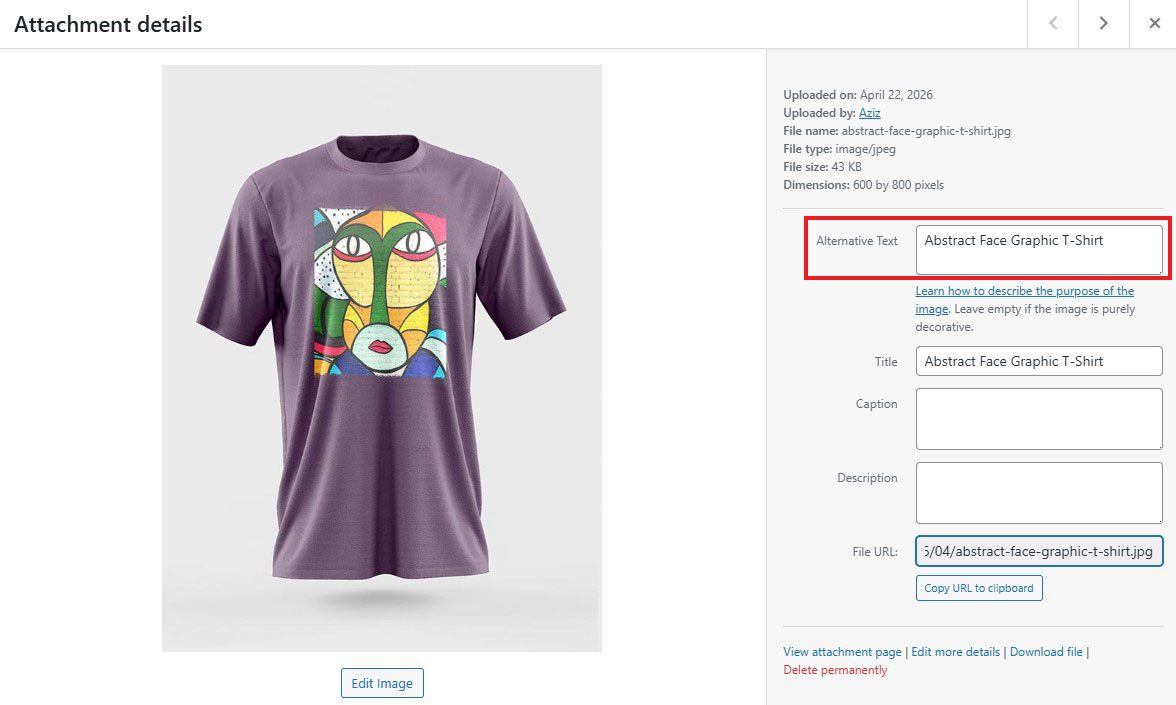
Furthermore, WordPress SEO plugins like Yoast or Rank Math can flag missing alt text for images directly in the post editor.
Shopify includes an alt text field for every product image, accessible via the product editing screen. For large product catalogs, Shopify’s bulk editor allows you to update alt text across multiple products without opening each one individually.
Use AI to Speed Up Alt Text Generation
AI can make writing alt text much faster, especially if you’re working with a lot of images.
Here’s a simple way to do it with AI:
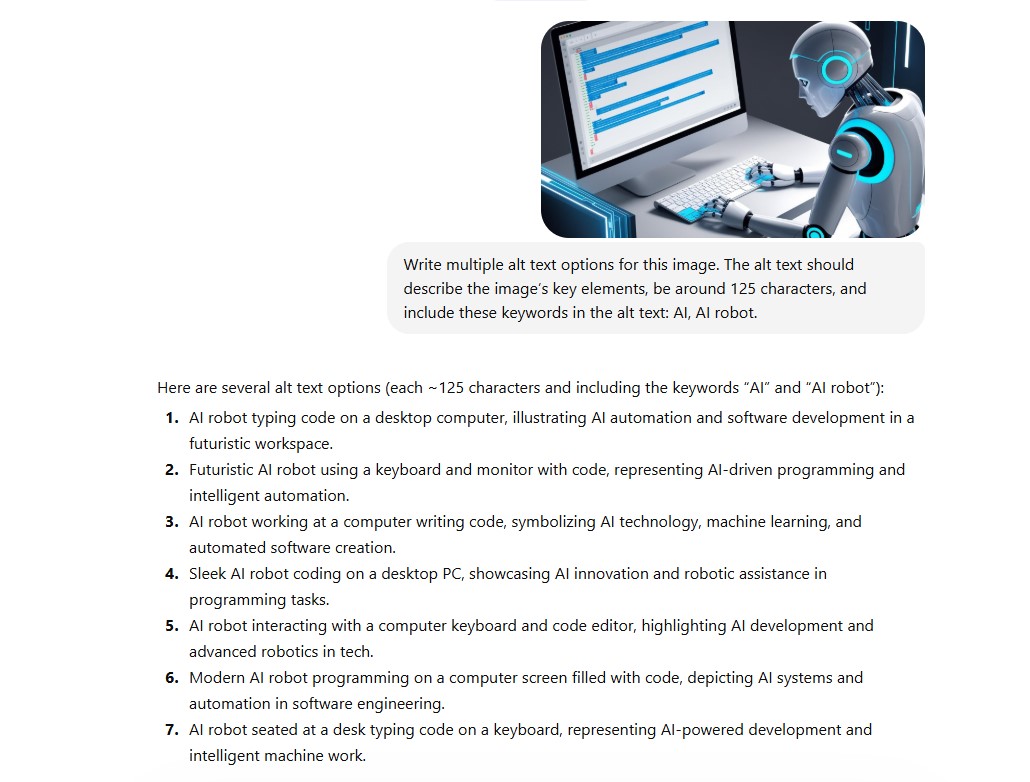
Start by uploading your image to an AI search engine tool like ChatGPT or Gemini. Then ask the tool to generate a few alt text options. Make sure you tell it to clearly describe the main parts of the image. You can also ask it to include your target keywords and stay within a certain character limit.
For example, you could use a prompt like this:
“Write a few alt text options for this image. Keep each one around 125 characters. Describe the key elements and include these keywords: [insert keywords here].”
Conclusion
Good alt text is a small habit with an outsized return. It makes your website more accessible to millions of people who rely on screen readers.
It helps Google understand and rank your images. It provides a meaningful fallback when images fail. And it signals to everyone — users, search engines, and AI tools — that your content is carefully crafted and worth trusting.
The rules aren’t complicated: be specific, stay under 125 characters, match the alt text to the image type, include keywords naturally, and use empty alt attributes for purely decorative elements.
The hard part is building consistency — making alt text a reflex rather than an afterthought.
A few hours of focused effort can improve accessibility and image SEO across your entire site — and that’s a rare combination of wins worth taking.
We hope this guide helps you learn how to write good alt text for images and improve your SEO.
For more, check out these other helpful resources:
- WordPress Image Sizes: The Ultimate Guide for Quick Optimization
- 10 Best WordPress Image Optimization Plugins Compared
- What is Gravatar? Its Benefits & How to Create One
Lastly, follow us on Facebook and Twitter to stay updated on the latest WordPress and blogging-related articles.

