14 April 2026
What Is Gravatar? Its Benefits & How to Create One
You’ve probably noticed your profile picture showing up automatically when you comment on blogs or websites. But most people don’t realize how or why that happens.
In this article, you’ll learn exactly what Gravatar is, how it works, and how to set it up to control your online identity.
Key Takeaways
- Gravatar is a globally recognized avatar system that links a profile image to an email address.
- Gravatar automatically displays your profile picture across supported websites and platforms.
- A single Gravatar account ensures a consistent online identity without repeated uploads.
- Gravatar integration is widely used in WordPress, blogs, and comment sections.
- Creating a Gravatar involves signing up, uploading an image, and linking your email.
- Consistent use of Gravatar strengthens personal branding and online credibility.
What Is Gravatar?
Gravatar is a globally recognized avatar service that links a profile image to an email address and displays it across supported websites.
First, the term Gravatar stands for Globally Recognized Avatar, meaning your profile image follows you wherever you use the same email address. For example, when you comment on a blog using your registered email, your Gravatar image automatically appears.
Moreover, this system eliminates the need to repeatedly upload your profile picture. Instead, your image is stored centrally and retrieved instantly by websites that support it.
Gravatar works by associating your email address with an uploaded image, which websites automatically retrieve and display.
For example, if you comment on a WordPress blog, your avatar appears instantly without having to upload it manually. This makes it a seamless system for online profile images.
Here’s a Gravatar example from the WP Rocket comments section:
Why Is Gravatar Important?
Gravatar is important because it creates a consistent and recognizable online identity across multiple platforms.
First, consistency builds trust. When someone sees the same profile picture on blogs and forums, it feels familiar. Over time, that familiarity makes you more credible. For example, regular commenters often become recognizable just by their avatar.
Second, it saves you time. You don’t have to upload your photo again and again. Set it once, and it appears everywhere. This is especially helpful if you’re active on multiple sites.
Finally, it adds credibility. Having a profile picture makes your comments feel more real. It shows there’s a person behind the words, not just an anonymous username.
A consistent Gravatar helps maintain a unified online identity across multiple platforms without the need for repeated uploads.
Where Is Gravatar Used?
Gravatar is used on many websites and platforms that support it. In some cases, it even works as the default system for profile pictures.
Here are a few popular platforms where Gravatar shows up:
- WordPress: Your Gravatar appears in author profiles and blog comments
- GitHub: It shows on your profile, commits, pull requests, and comments
- Slack: It can be used as your default profile picture
- Disqus: Your avatar appears in the comment section
- Stack Overflow: It shows when you ask questions or post answers
The best part? You don’t need to upload your image repeatedly. Once your email is linked to your Gravatar account, your avatar shows up automatically on these platforms.
How to Set Up a Gravatar Account
Now that you know what a Gravatar is and why it’s useful, let’s walk through how to set one up. It’s pretty straightforward and only takes a few minutes.
Here’s how to get started:
First, go to the Gravatar website and click on the “Get Started Now” button.
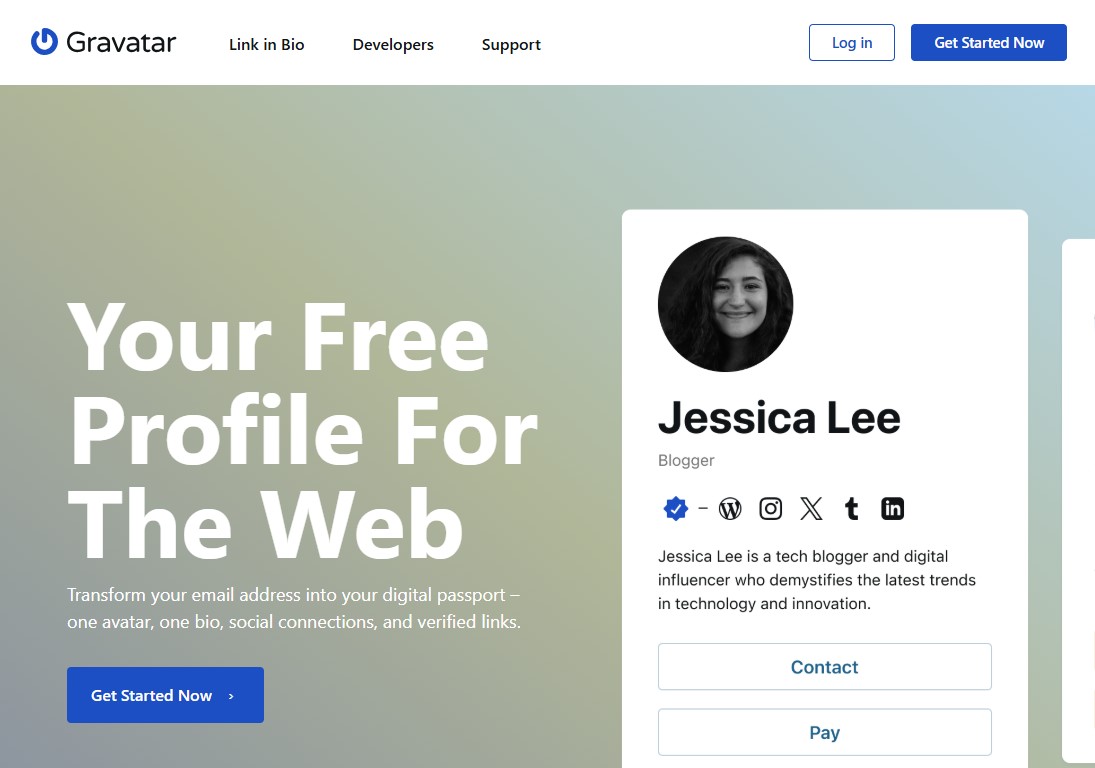
You’ll be taken to the signup page. Enter your email address and click “Continue.”
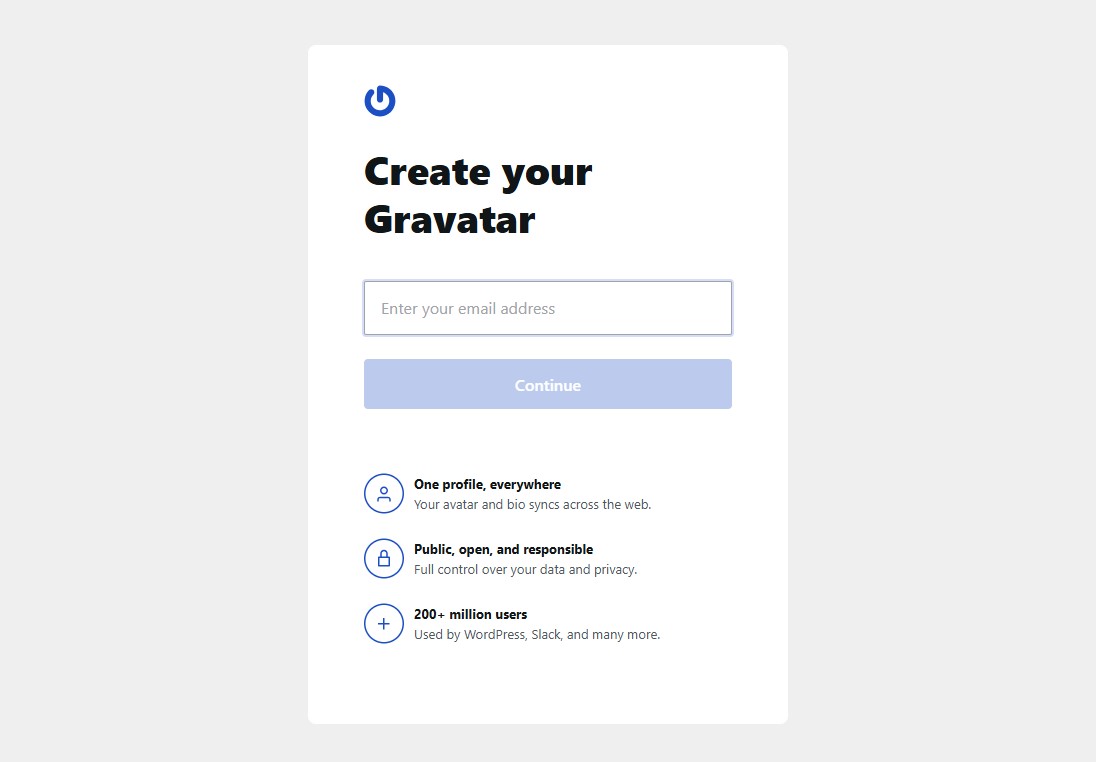
After that, check your inbox. You’ll receive a verification code. Enter the code on the site and hit “Continue” again.
Next, you’ll see a setup screen. Add your full name and move forward.
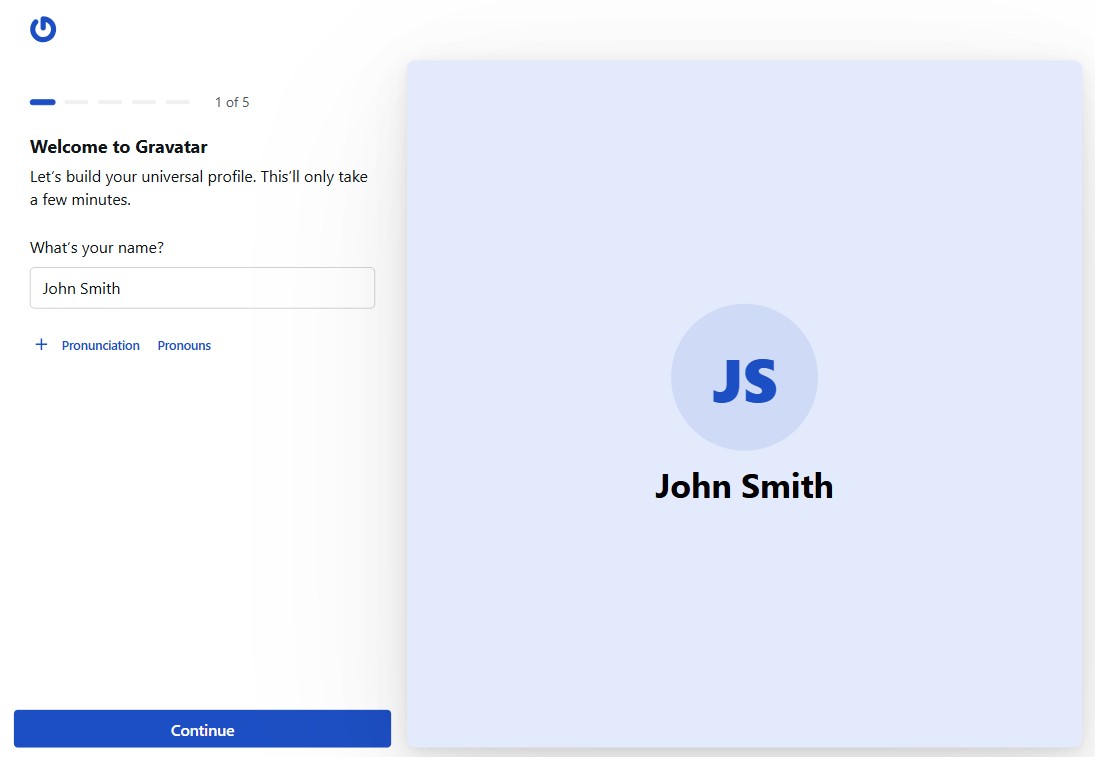
Now it’s time to choose your avatar. You can upload an image from your computer by clicking “Upload.” If you prefer, you can take a photo on the spot using the “Camera” option.
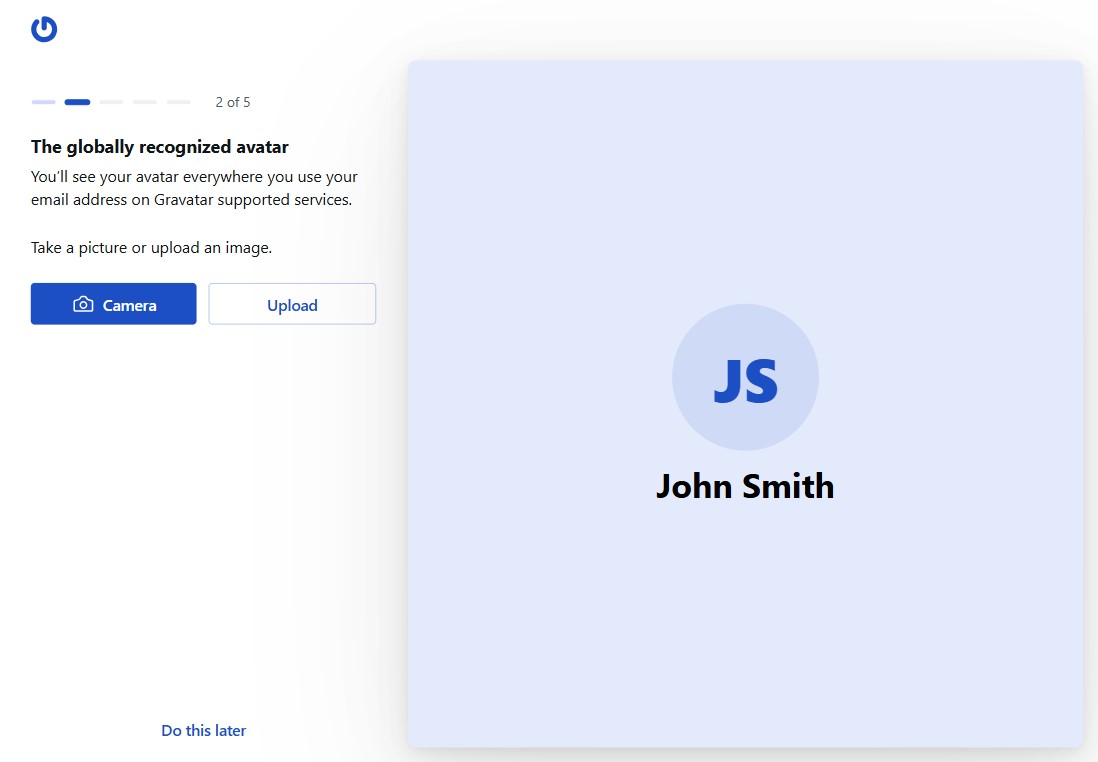
Once your image is uploaded, the editor will open. Here, you can crop, rotate, zoom, and preview your picture.
You can also tweak things like brightness, contrast, and saturation. If you want, try out a few filters too. When everything looks good, click “Done.”
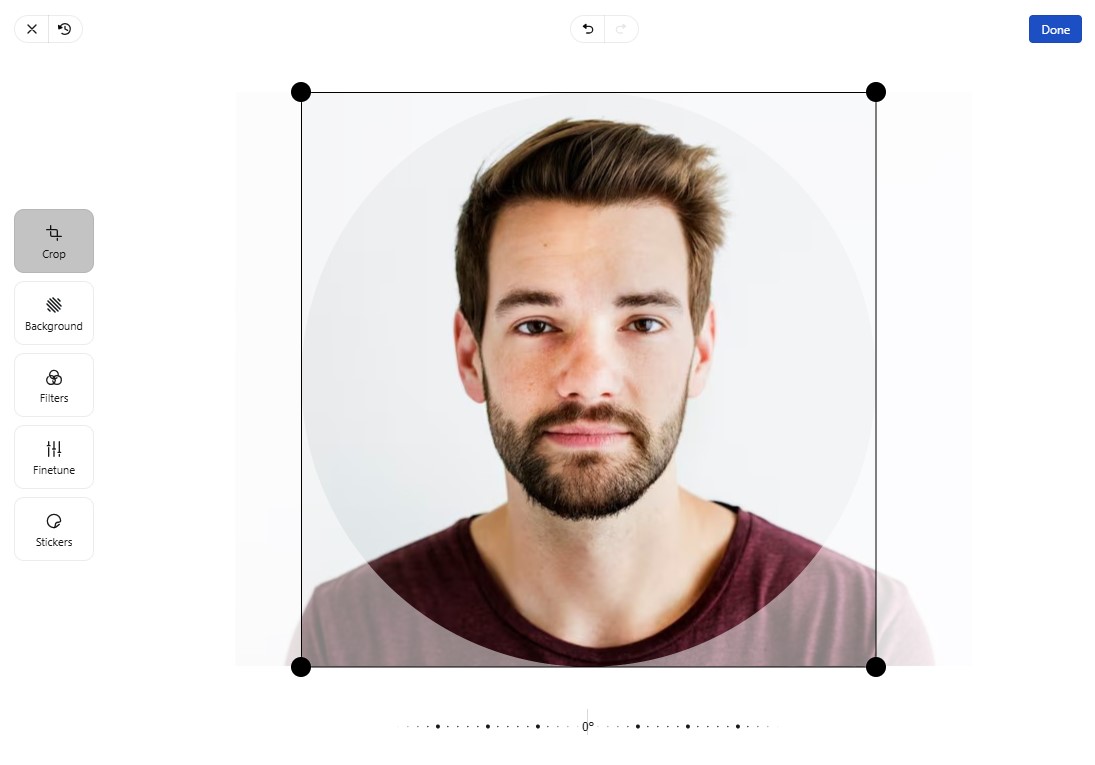
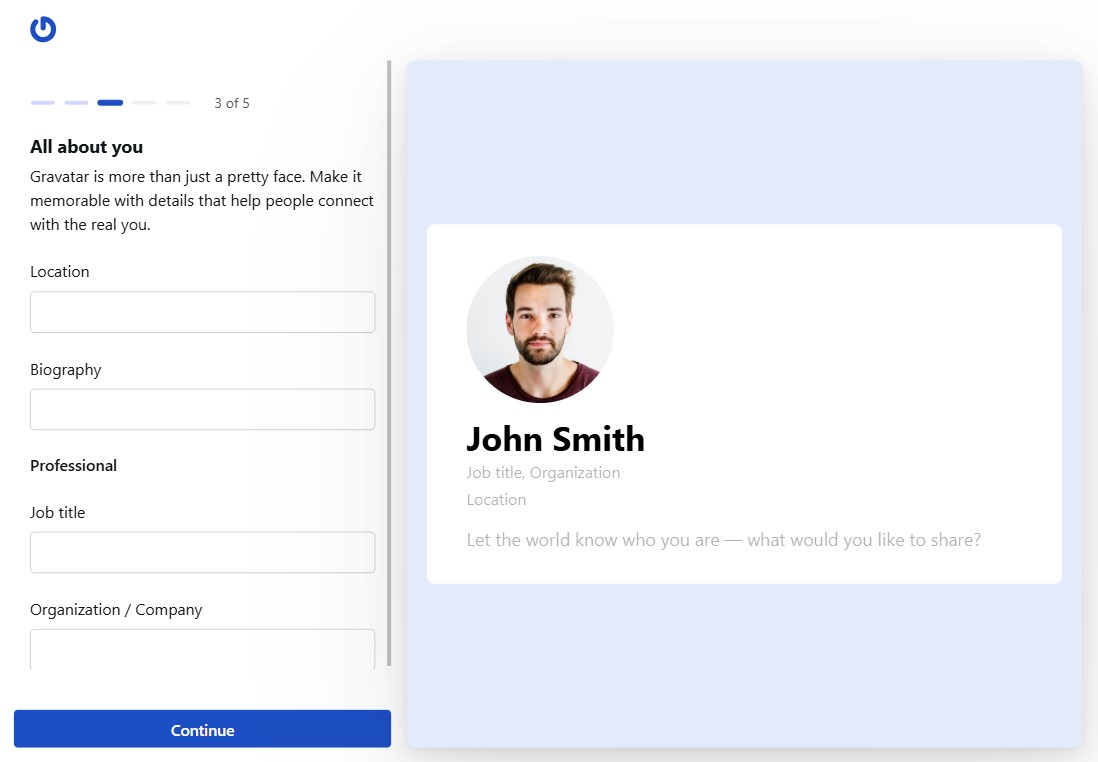
After that, you can add additional details, such as your location and a short bio. Then click “Continue.”
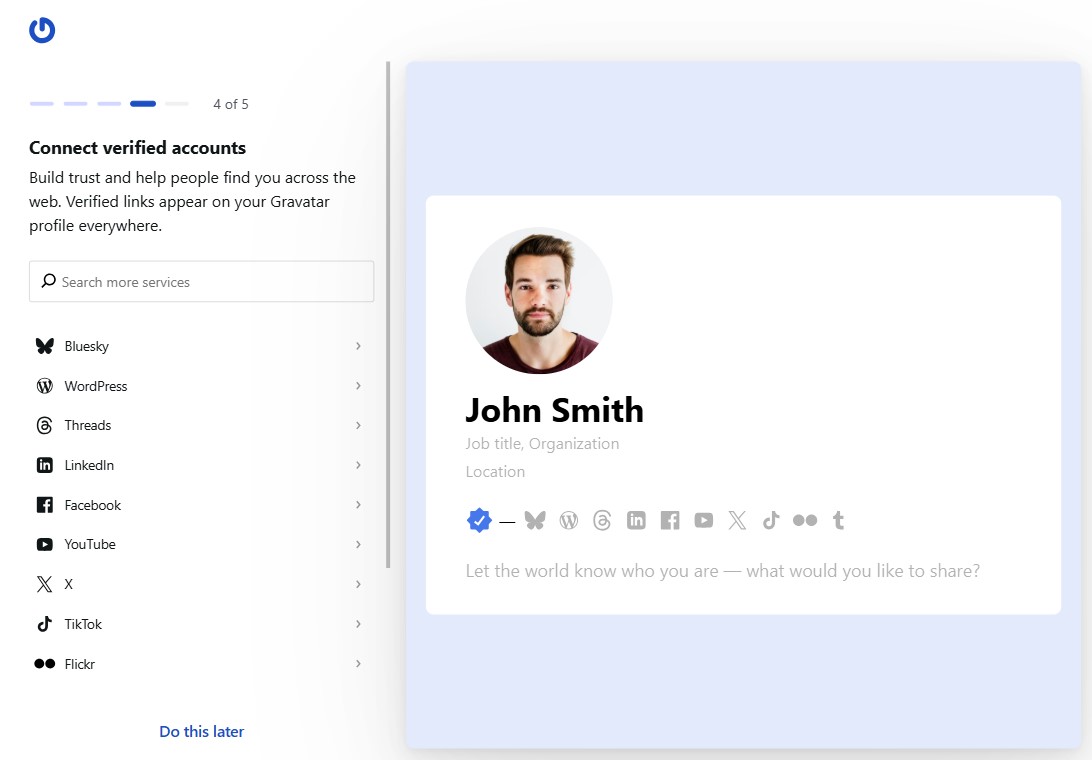
You’ll also have the option to connect other accounts. You can do that now or skip it for later.
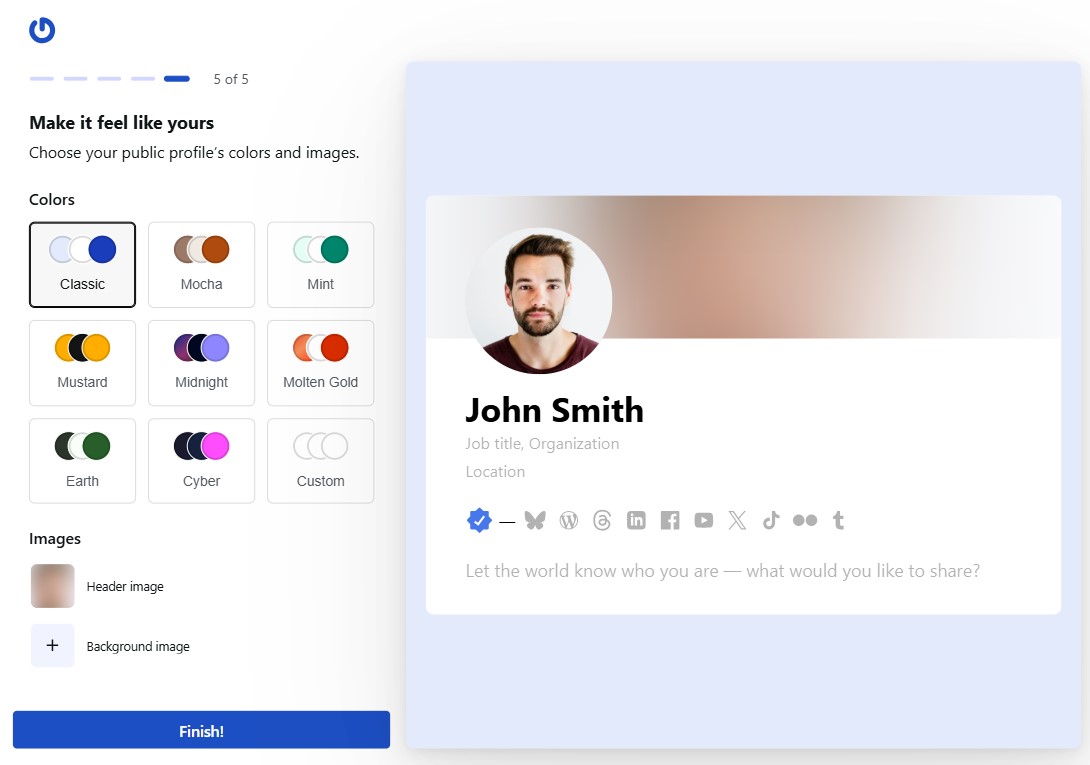
Finally, personalize your profile by picking a color theme and adding a header image. When you’re finished, click “Finish.”
That’s it! Your Gravatar is now linked to your email. From now on, it will appear automatically on any site that supports Gravatar whenever you use that email.
How to Enable Gravatar on Your WordPress Website
WordPress already comes with built-in support for Gravatar, so you don’t need to install any extra plugins.
Here’s how you can turn it on:
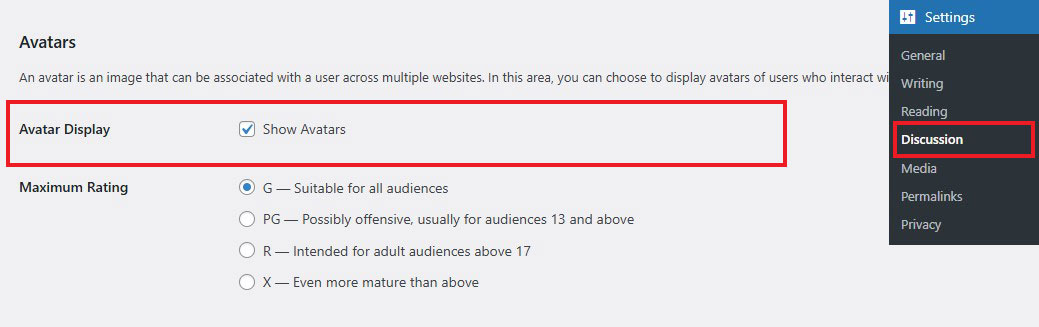
First, go to your WordPress dashboard. From the sidebar, head to Settings » Discussion.
Next, scroll down until you see the Avatar Display section. Check the “Show Avatars” box.
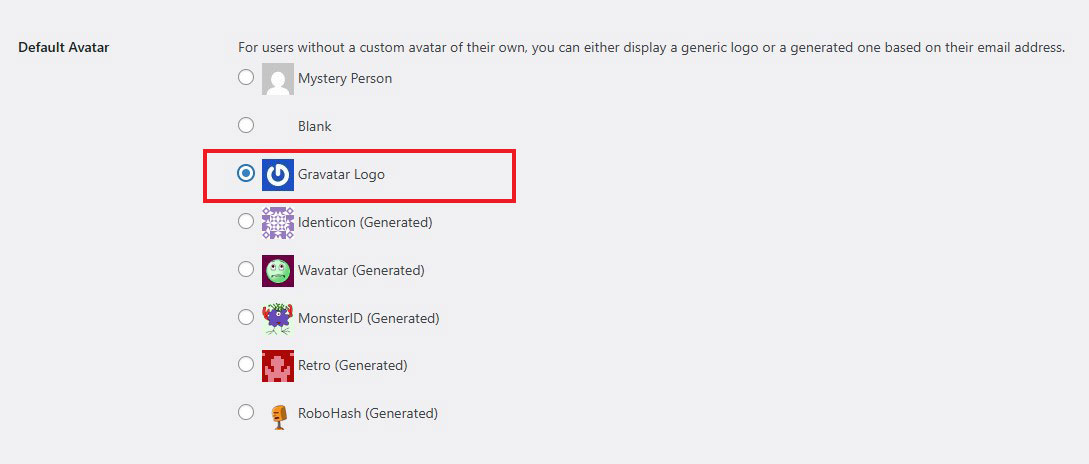
After that, look for the Default Avatar option. Choose a Gravatar Logo from the list.
Finally, scroll to the bottom and click Save Changes.
That’s it. Now, anyone with a Gravatar account will automatically see their profile picture. If they don’t have one, WordPress will show the default Mystery Person icon instead.
WordPress Gravatar Guide: How to Improve Gravatar Usage on Your Site
Now let’s get into some practical tips for using Gravatar on your WordPress site.
Gravatar makes it easy to show real profile pictures. But it’s not perfect. There are two main areas where it can cause issues:
- User experience
- Performance
First, let’s talk about user experience.
The main issue is simple. Visitors can’t change their profile picture on your site. They have to go to the Gravatar website to do it.
For blog comments, this isn’t a big problem. Most users won’t mind the extra step.
But things change if you run a membership site or an online course. In that case, users expect everything to happen in one place. Sending them to another site just to update a photo can feel inconvenient.
Now let’s look at performance. There are two common problems here:
- Gravatar images load from an external server
- You don’t control how those images are cached
In simple terms, your visitor’s browser has to make extra requests to load those images. This can slow things down.
Also, since the images aren’t stored on your server, you can’t manage caching. That means less control over how fast your pages load.
So, what can you do about it?
Let’s go through a few easy fixes using free plugins.
How to Cache Gravatar Images on WordPress
One way to improve performance is by caching Gravatar images on your own server.
Here’s how it works.
Your site pulls the image from Gravatar once. Then it saves a copy locally. After that, the image loads from your server instead of an external one.
This reduces external requests and gives you better control over speed. Of course, there’s a trade-off. Your server will use its own bandwidth to load those images.
Some performance plugins already include this feature. But if yours doesn’t, you can use a dedicated plugin.
Here are a few good options:
How to Disable Gravatar on WordPress
If WordPress speed & performance is your top priority, you can turn off Gravatar completely.
Just keep in mind what this means. Your site won’t show profile pictures anymore. This applies to both comments and registered users.
If you only want to remove avatars from comments, WordPress has a built-in setting for that. Just go to Settings » Discussion and uncheck the “Show Avatars” checkbox.
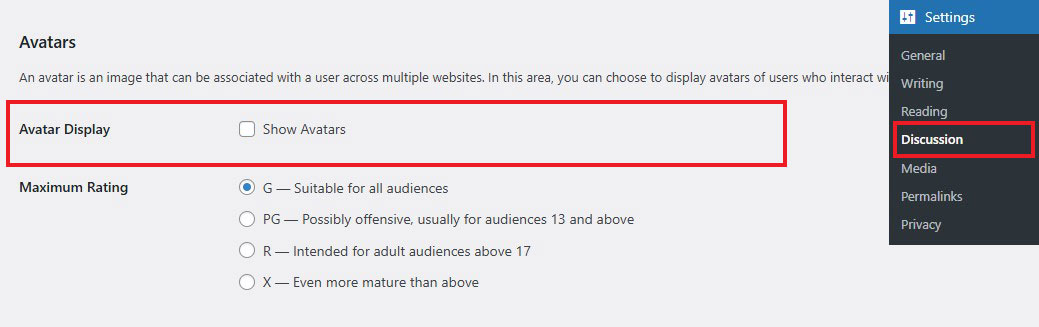
That’s it. Simple and quick.
However, if you want to fully disable Gravatar across your entire site, including registered users, you can use a Disable User Gravatar plugin.
Once activated, it immediately stops all connections to the Gravatar service.
In addition, you’ll also see a new option in Settings » Discussion. This lets you set a custom default avatar if you still want some visual identity on your site.
How to Allow WordPress User Profile Pictures Without Gravatar
Now, what if you disable Gravatar but still want users to have profile pictures?
That’s totally possible.
There are plugins that let users upload their own avatars directly to your site. This keeps everything in one place and improves the overall experience.
Here are some popular plugins to try:
- Simple Local Avatars – lets users upload images directly. You can also keep or disable Gravatar support.
- Avatar Manager – gives users the option to choose between Gravatar or a custom image.
- WP User Avatars – allows registered users to upload and manage their own profile pictures.
Conclusion
Gravatar is a simple but powerful way to manage how you appear online across different websites.
It lets you connect one profile picture to your email address. Once that’s done, your image shows up automatically on any site that supports it. This saves you time, makes your profile look more trustworthy, and helps build a consistent personal brand.
If you haven’t set up your Gravatar yet, now is a great time to start. It only takes a few minutes, and it gives you more control over your online presence.
We hope this article helped you learn about what Gravatar is, its benefits, and how to create one.
For more, check out these other helpful resources:
- 10 Best Blogging Platforms for Beginners Compared
- 8 Best Web Hosting for Bloggers – Top Picks Compared
Lastly, follow us on Facebook and X (formerly Twitter) to stay updated on the latest WordPress and blogging-related articles.
Frequently Asked Questions
Is Gravatar free to use?es, Gravatar is a completely free service provided by Automattic. You can create an account, upload images, and manage multiple email profiles without any subscription costs.
es, Gravatar is a completely free service provided by Automattic. You can create an account, upload images, and manage multiple email profiles without any subscription costs.
Why should I use a Gravatar?Using a Gravatar builds brand recognition and trust. It makes your online interactions more personal and professional by replacing generic icons with your unique, recognizable photo.
Using a Gravatar builds brand recognition and trust. It makes your online interactions more personal and professional by replacing generic icons with your unique, recognizable photo.
Does Gravatar affect SEO?Indirectly, yes. A consistent Gravatar builds author authority and improves engagement. Search engines may also index Gravatar profiles, linking your identity to your published content across the web.
Indirectly, yes. A consistent Gravatar builds author authority and improves engagement. Search engines may also index Gravatar profiles, linking your identity to your published content across the web.
Is Gravatar safe for privacy?Gravatar uses MD5 hashes to protect email addresses. While secure, the hash is visible in the site’s code, so some users prefer using dedicated emails for public interactions.
Gravatar uses MD5 hashes to protect email addresses. While secure, the hash is visible in the site’s code, so some users prefer using dedicated emails for public interactions.
What happens if I don't have a Gravatar?If you haven’t set one up, websites will display a default fallback image, such as a “Mystery Person,” a geometric “Identicon,” or a randomly generated monster icon.
If you haven’t set one up, websites will display a default fallback image, such as a “Mystery Person,” a geometric “Identicon,” or a randomly generated monster icon.
Do I need a WordPress.com account to use Gravatar?Yes. Even if you have a self-hosted WordPress.org website, your Gravatar is managed through a free WordPress.com account. This is used as the central login system for the service.
Yes. Even if you have a self-hosted WordPress.org website, your Gravatar is managed through a free WordPress.com account. This is used as the central login system for the service.
Why is my Gravatar not showing up?Your Gravatar may not show if the email used doesn’t match your Gravatar account, the site’s cache hasn’t updated, or the image rating exceeds the website’s allowed level.
Your Gravatar may not show if the email used doesn’t match your Gravatar account, the site’s cache hasn’t updated, or the image rating exceeds the website’s allowed level.
Can I use Gravatar on sites other than WordPress?Absolutely. While popular on WordPress, Gravatar is supported by numerous platforms including GitHub, Stack Overflow, Slack, and Disqus, making it a universal tool for digital identity.
Absolutely. While popular on WordPress, Gravatar is supported by numerous platforms including GitHub, Stack Overflow, Slack, and Disqus, making it a universal tool for digital identity.

